
ADMIN SORTED · INCLUDED WITH TEACHER SORTED
School admin doesn’t have to start with a blank page.
The parent letter. The class update. Next term’s timetable. The assembly that still needs planning. Admin Sorted helps you get those jobs moving with editable drafts, timetable tools and projects you can keep together.
Included during your Teacher Sorted trial and membership.
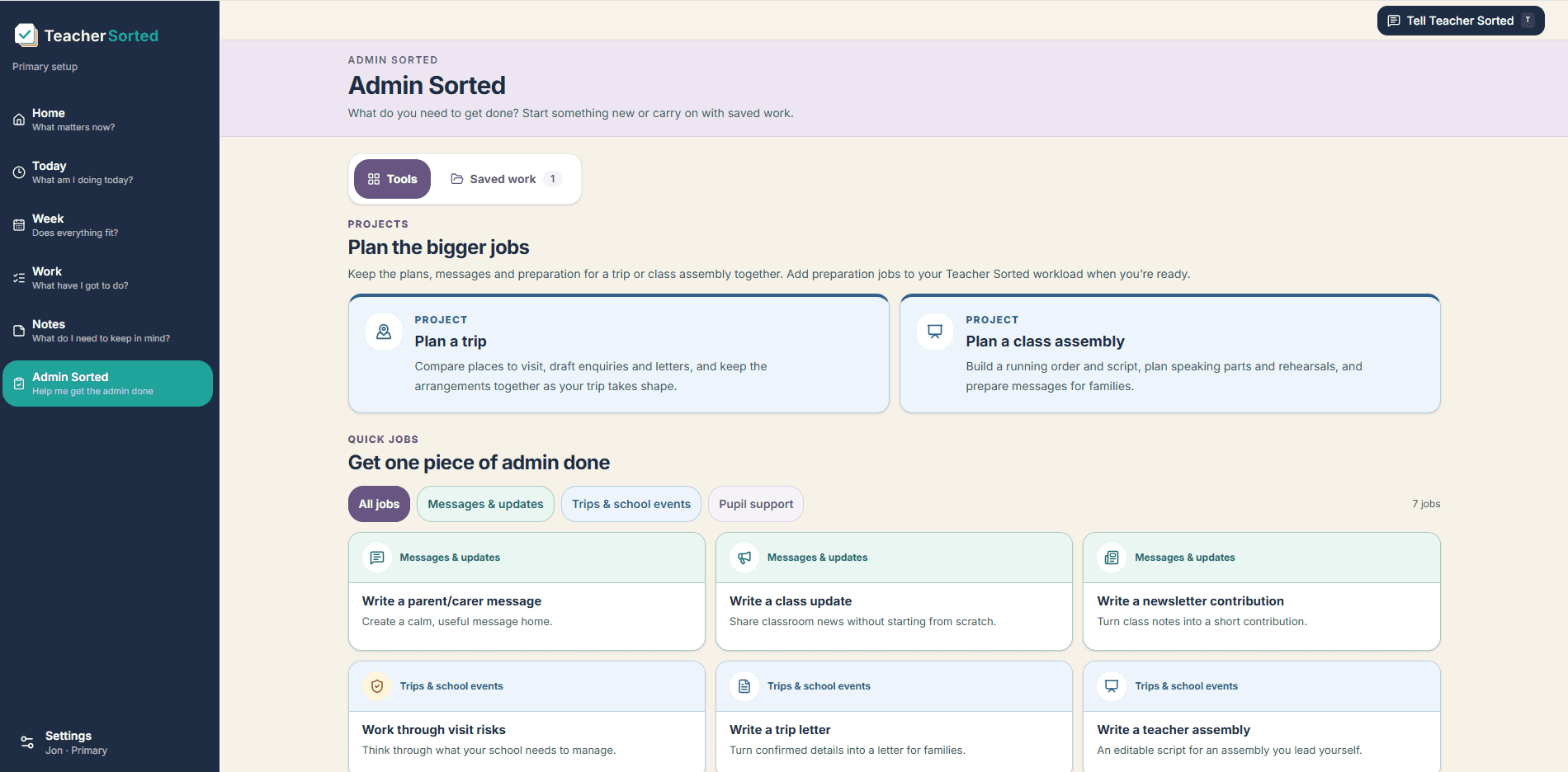
Start the letters and messages without writing every word from scratch.
Choose a quick job, add and check the facts, then review the result. You keep the final say over the wording.
Write a parent/carer message
Get a calm, useful draft for a positive update, reminder or everyday follow-up.
Write a class update
Turn the week’s notes into a clear update for families.
Write a newsletter contribution
Get a short contribution started from your class news.
Write a trip letter
Turn confirmed arrangements into a draft for families.
Write a teacher assembly
Create an editable script for an assembly you lead yourself.
Work through visit risks
Think through what your school needs to manage, ready for your usual checks.
Build a support target
Turn non-identifying educational context into a specific next step to review and copy into your school’s system. Inputs and targets aren’t saved.
Keep the bigger jobs together, not across six different documents.
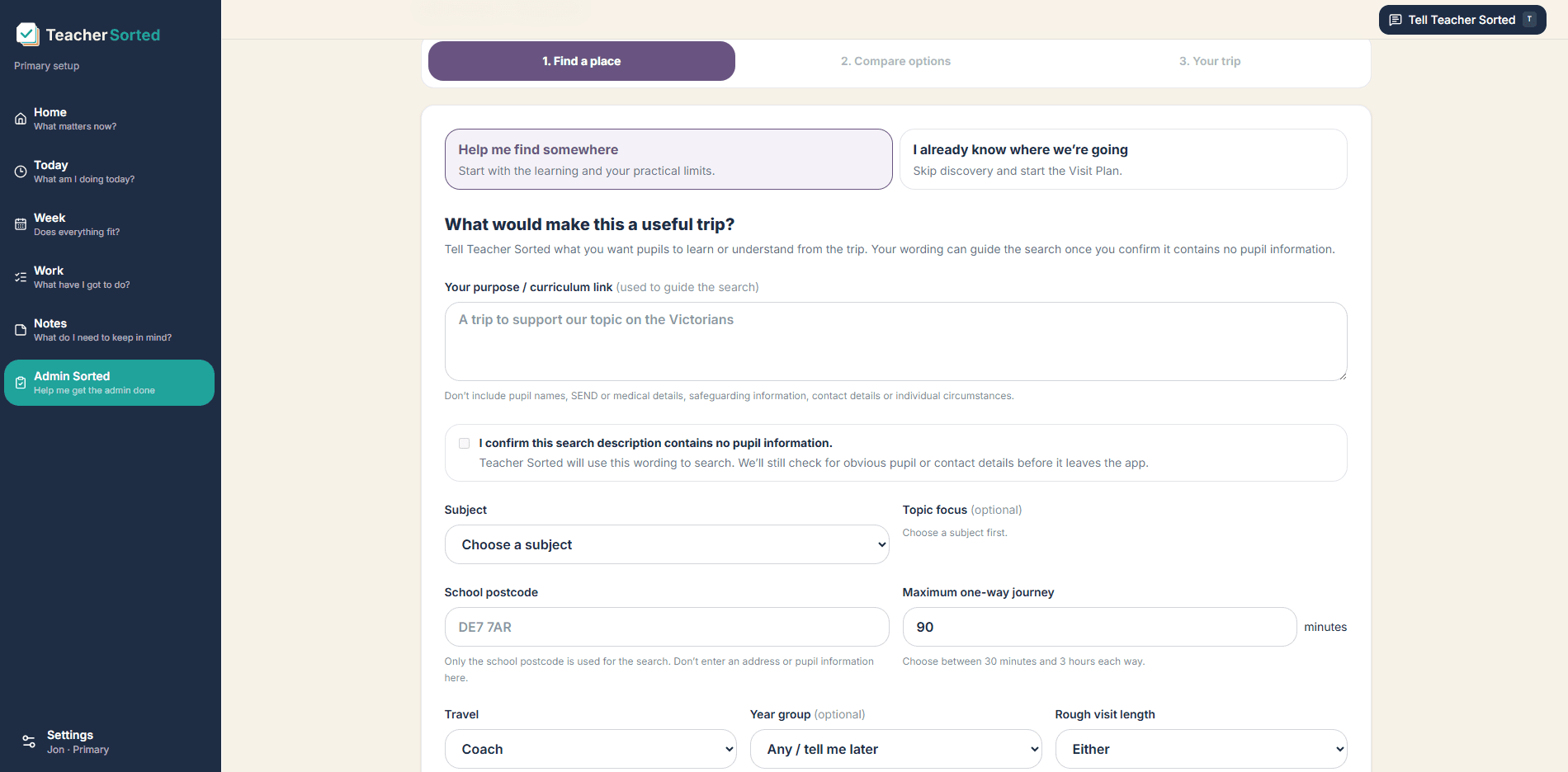
Plan a trip
Find and compare places to visit, or start with a destination you’ve chosen. Keep the arrangements, draft enquiries and letters together as the trip takes shape.
Check research, travel estimates and venue details with the relevant people before booking or seeking approval.
Plan a class assembly
Build a running order and script, plan speaking parts and rehearsals, and prepare messages for families.
Choose which preparation jobs to add to your Teacher Sorted workload, then decide where they fit in the time you have.
Build your teaching timetable
Upload the timetable you already have as a photo, PDF, Word file or spreadsheet, or build it yourself. Check what Teacher Sorted has read before adding it.
Colour-code lessons, use Week A/B, and show it in Today and Week if you want. Print or download it when you need a copy.
A few useful things to know
Where do I find it, and is it included?
Open Admin Sorted from the sidebar, or More on your phone. It’s included with Teacher Sorted during your trial and membership. You don’t need a separate subscription.
Can I upload or create my teaching timetable?
Yes. Open Admin Sorted → Teaching Timetable. Upload a timetable file or photo, paste its text, choose a starting example or build your own week. Check the lessons and times, then save. You can use Week A/B, make changes to specific dates, print it and choose whether to show it in Today and Week. It’s optional and doesn’t automatically add work time. Keep pupil-identifying information out of uploads.
How do I get started?
Choose one job, add the details you know, then review them before creating a draft. Check and edit the result before you use it. For a first try, choose Write a class update or Write a newsletter contribution.
What’s the difference between a project and a quick job?
A quick job helps with one piece of admin. Projects such as Plan a trip, Plan a class assembly and Teaching Timetable keep work you’ll return to. You choose which project preparation jobs to add to your Teacher Sorted workload. Starting a project doesn't silently rearrange your week.
Does Admin Sorted save my work?
Saved Work lets you return to supported jobs and projects, including teaching timetables. For messages and letters, use Save version to keep an accepted draft. Teacher assembly scripts can be saved too. Visit-risk wording needs copying out. Support Target Builder inputs and targets aren’t saved: copy them into your school’s usual system before leaving.
Does it send messages or approve trips for me?
No. You review and edit drafts, then use your school’s usual sending and approval process. Check venue information, arrangements and risks with the relevant people. Admin Sorted helps you prepare; it doesn’t book a visit or approve a risk assessment.
What pupil information can I include?
Follow the guidance in the job you’re using. Keep pupil names and identifying or sensitive casework out of general text boxes and group-level jobs. In a parent/carer message, the dedicated first-name field stays in your browser and is replaced by a placeholder before drafting or saving. Support Target Builder accepts relevant non-identifying educational context after you confirm it contains nothing that could identify the pupil. Its inputs and targets aren’t saved.